Your GPX track on a transparent background, to lay over a photo.
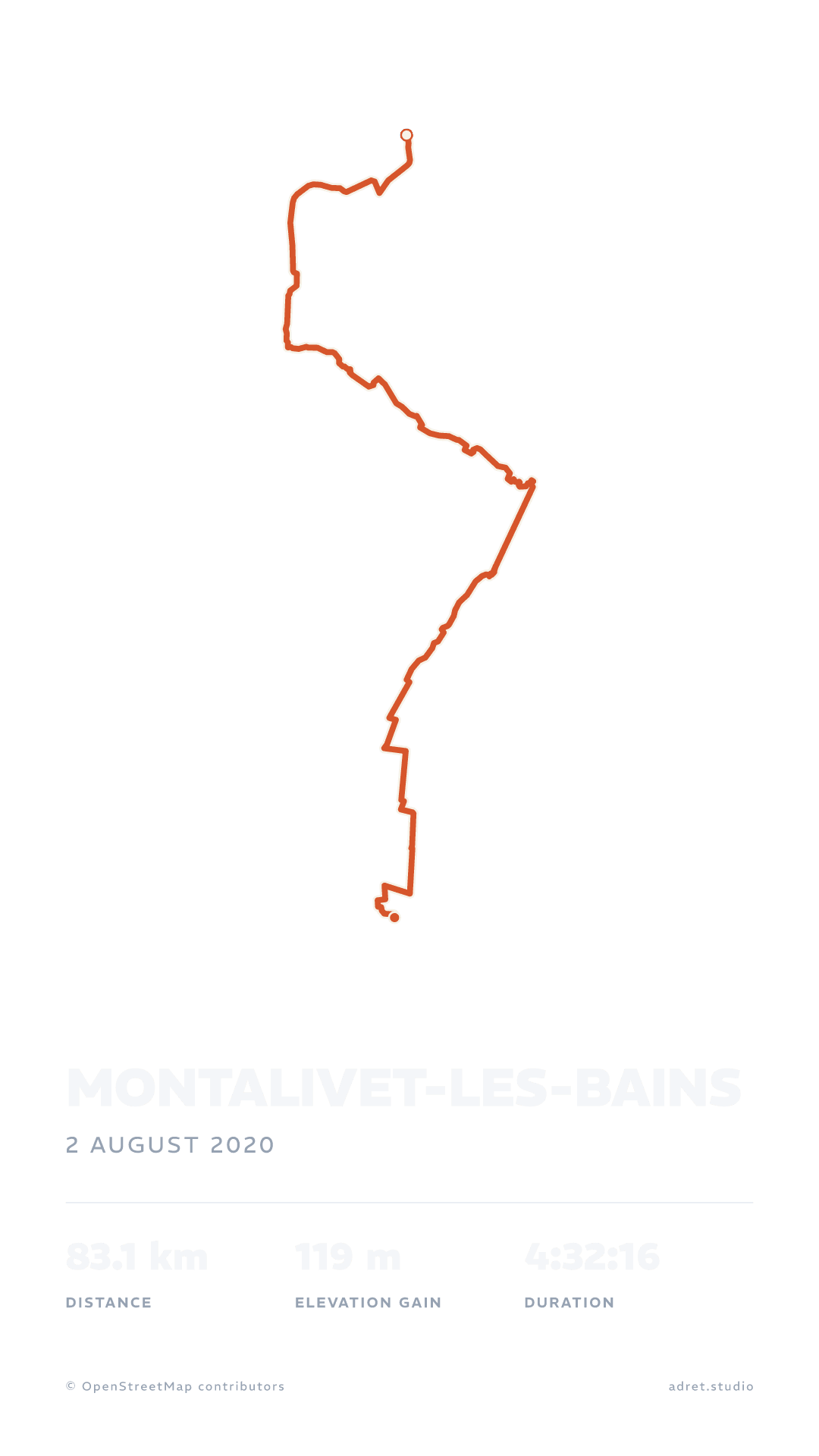
No sheet at all: the line, the map and your stats on nothing, in a PNG that keeps its transparency. It goes onto a photo of the outing, a video or an edit, and it is free, with no account and no watermark.


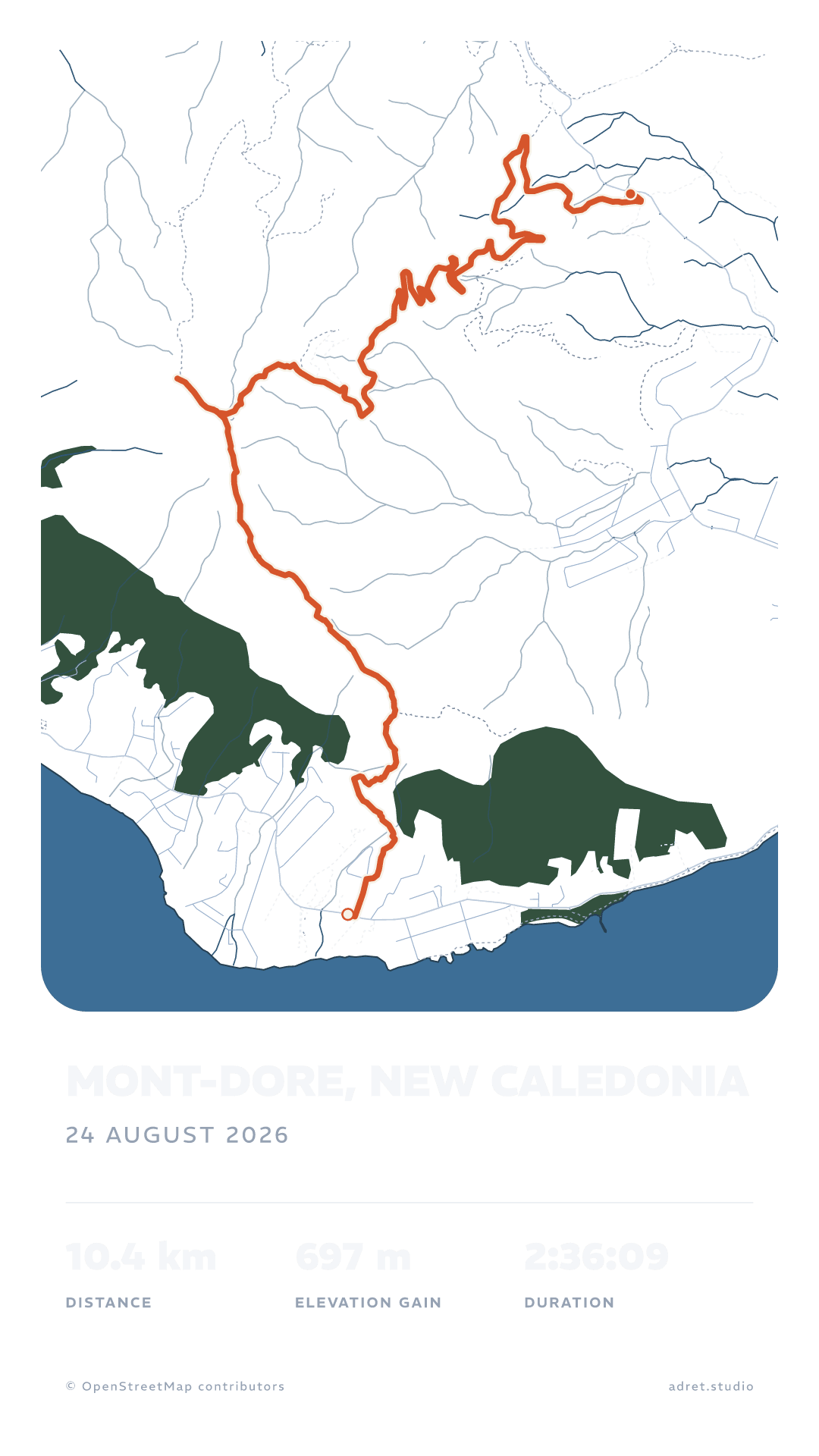
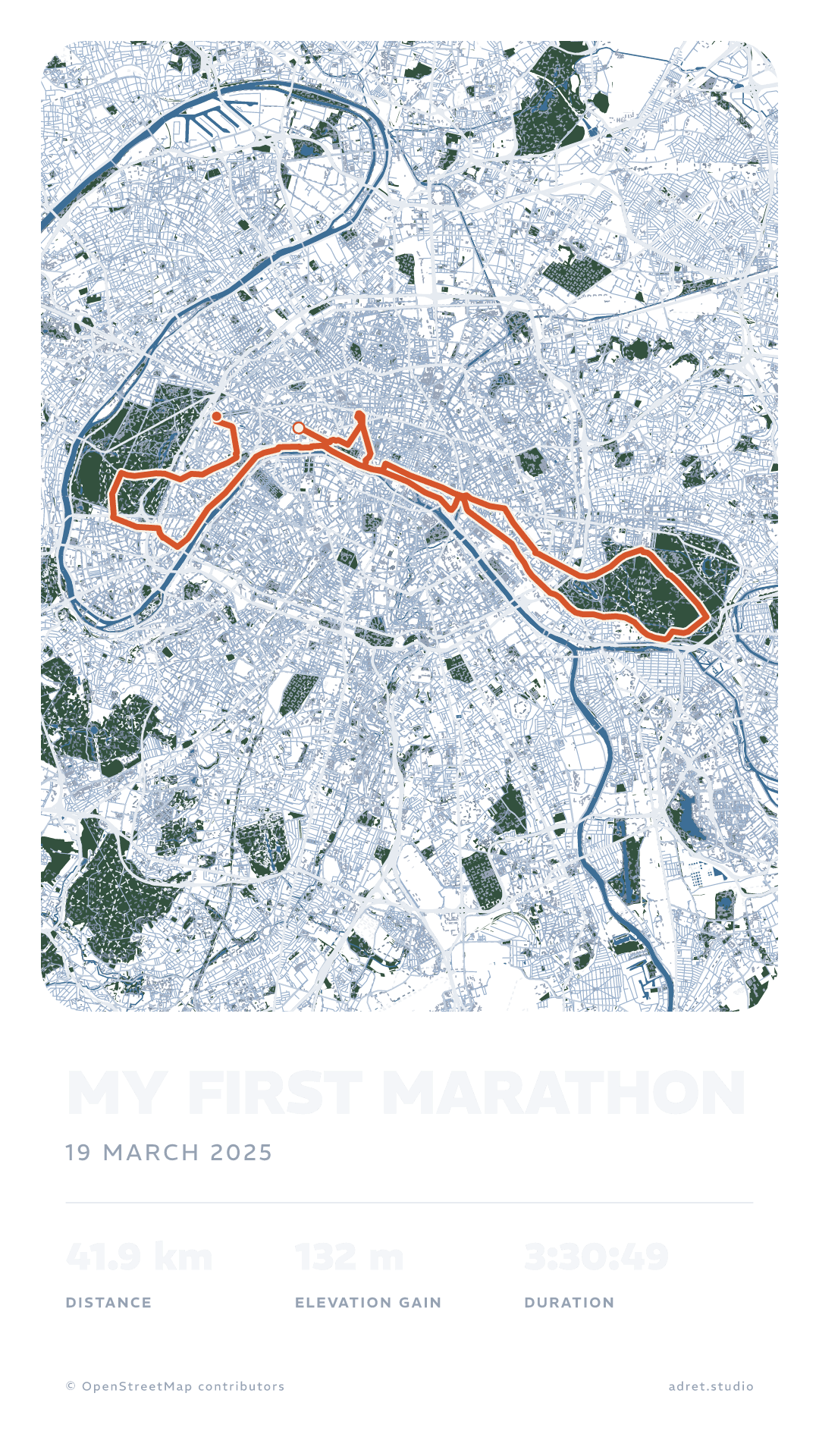
Three steps.
- 01
Import the track
A GPX, a FIT or a TCX, from any app: the guide says where to find it.
- 02
Pick Transparent
In the Styles tab, the Transparent style takes the sheet away in one tap. For a background only partly see-through, pull down its Opacity, under Page.
- 03
Lay it anywhere
Save the PNG, then add it to a story as a sticker, or to a video as a layer in your editing app.
A track, and nothing around it.
Background
Over a photo, or a video.
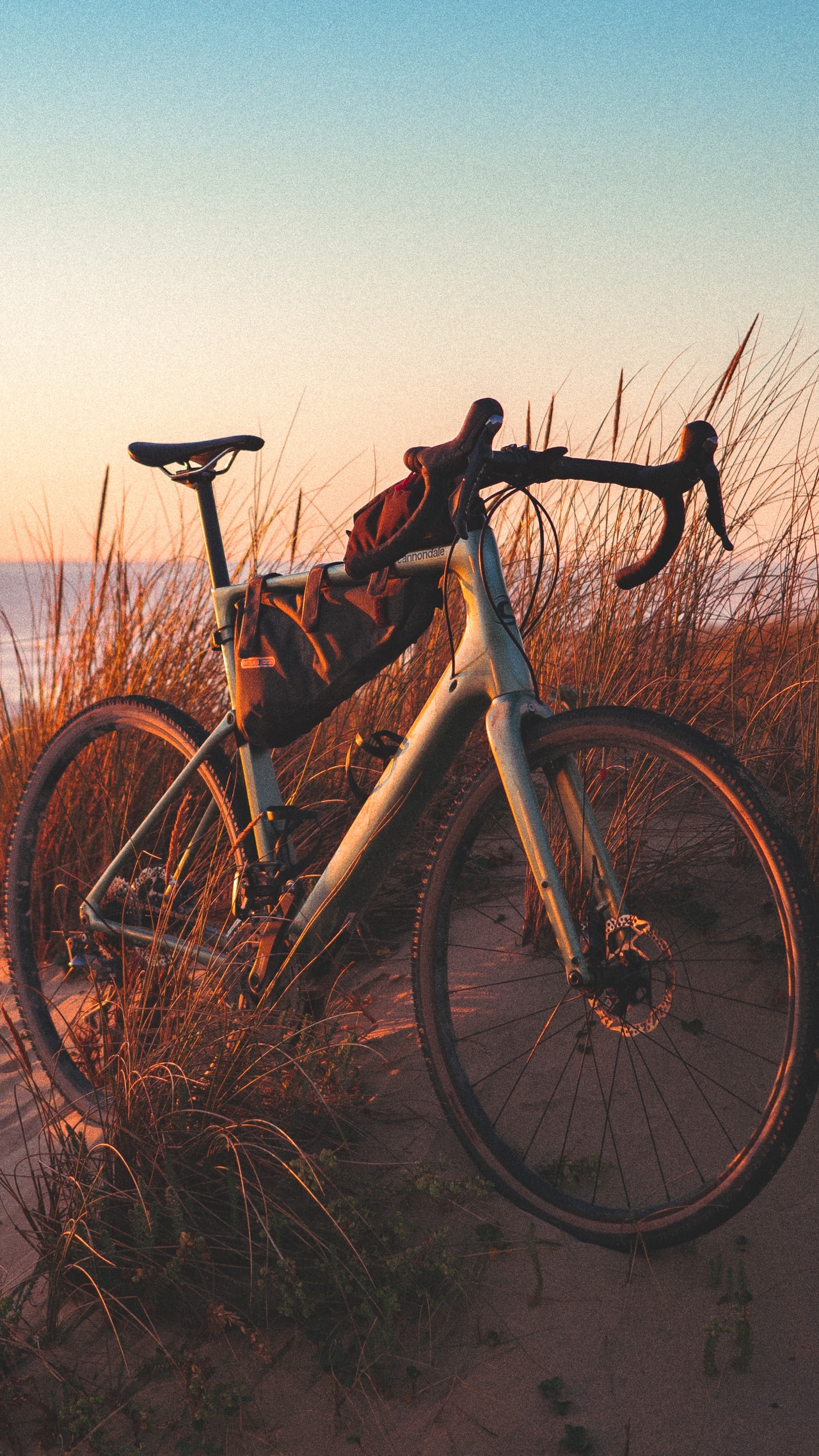
The same poster, on the app’s chequerboard and then over the photo taken that day. In Adret, Page, then Background, then Photo lays it straight onto a picture from your library; transparent, it goes everywhere else.
Contents
Keep only what reads.
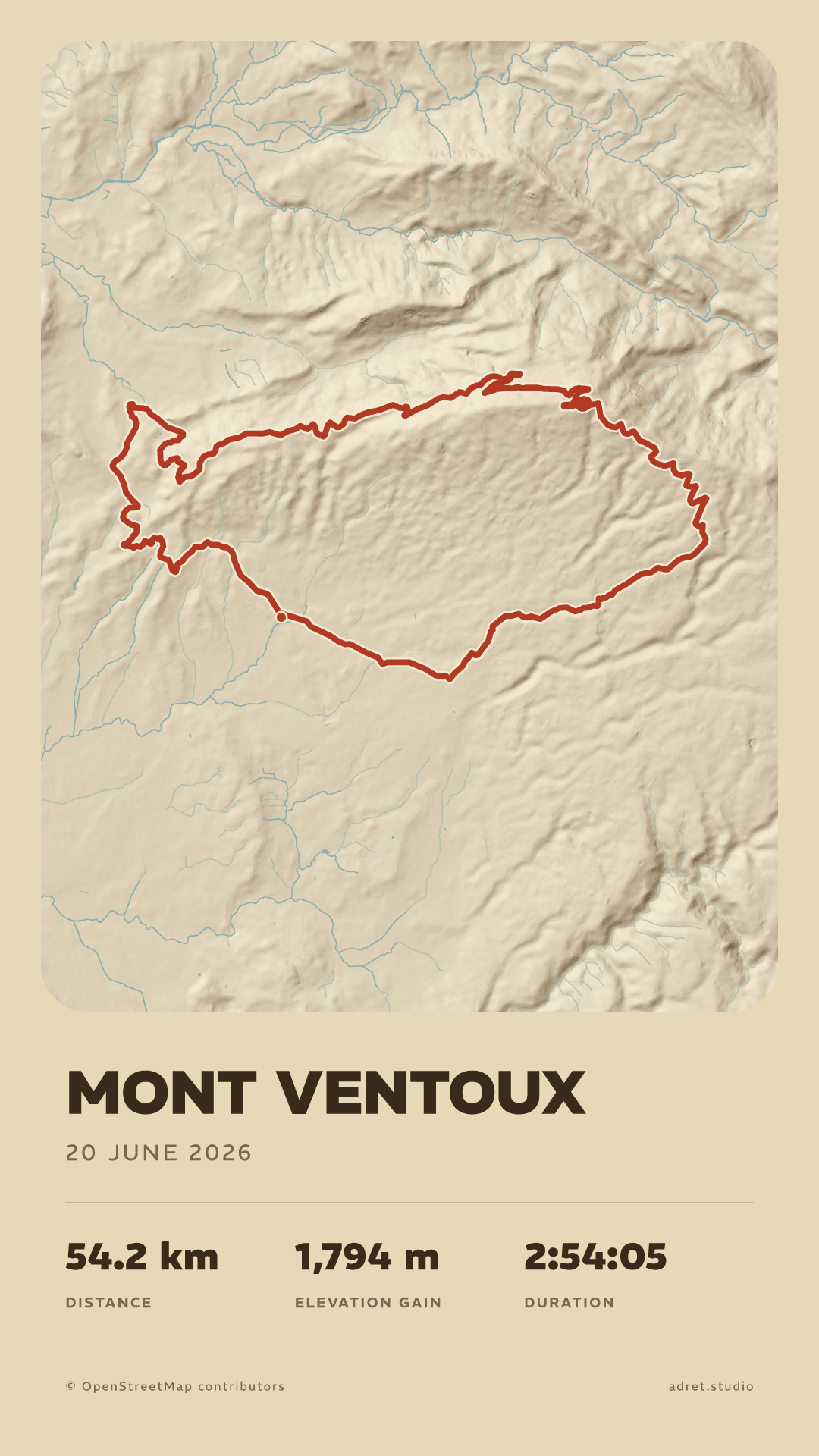
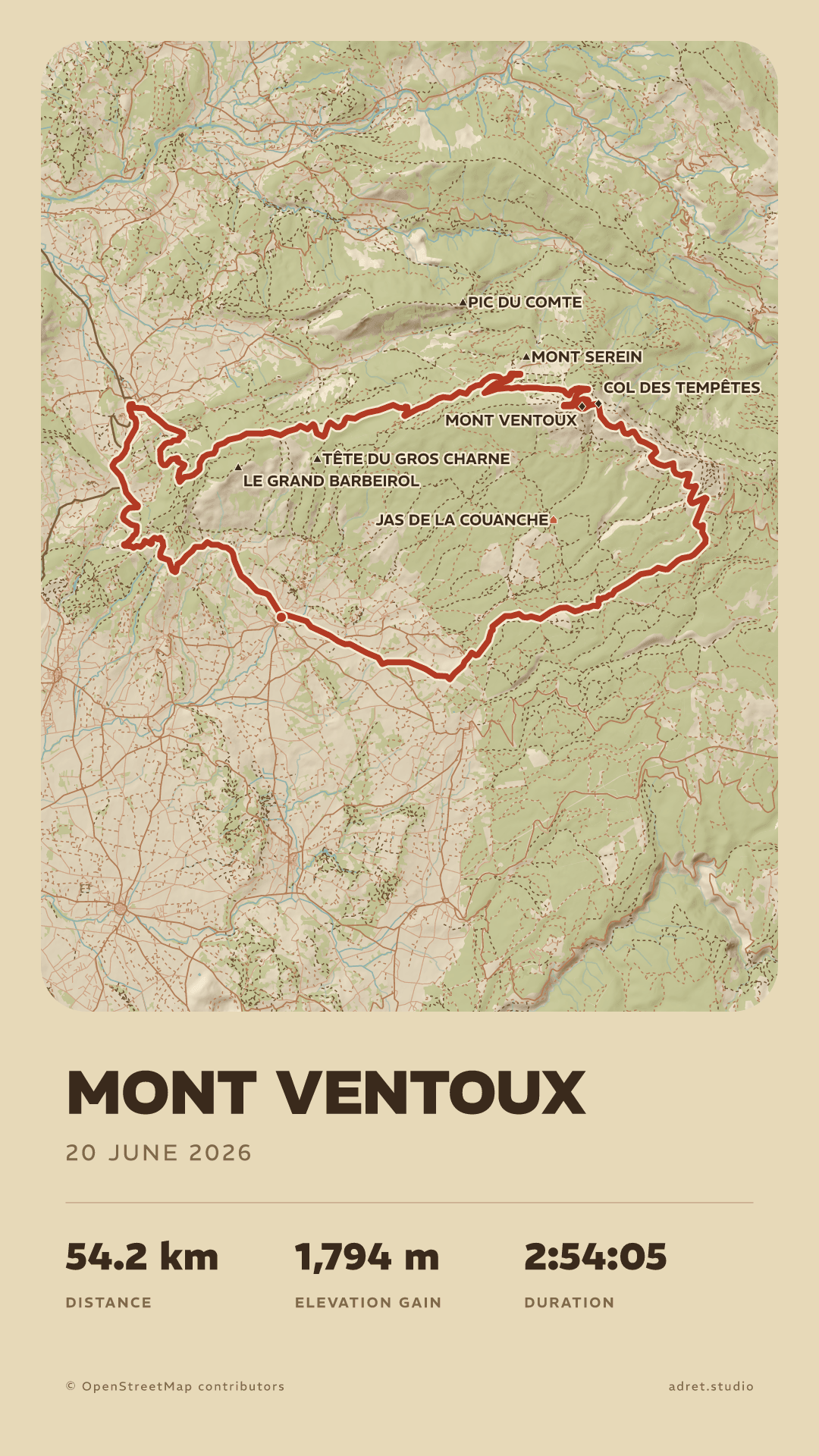
Over a picture, less map reads better: hide the roads, the woods or the names, layer by layer, down to your line alone. Every colour has its own opacity too.
Format
A PNG, not a JPEG.
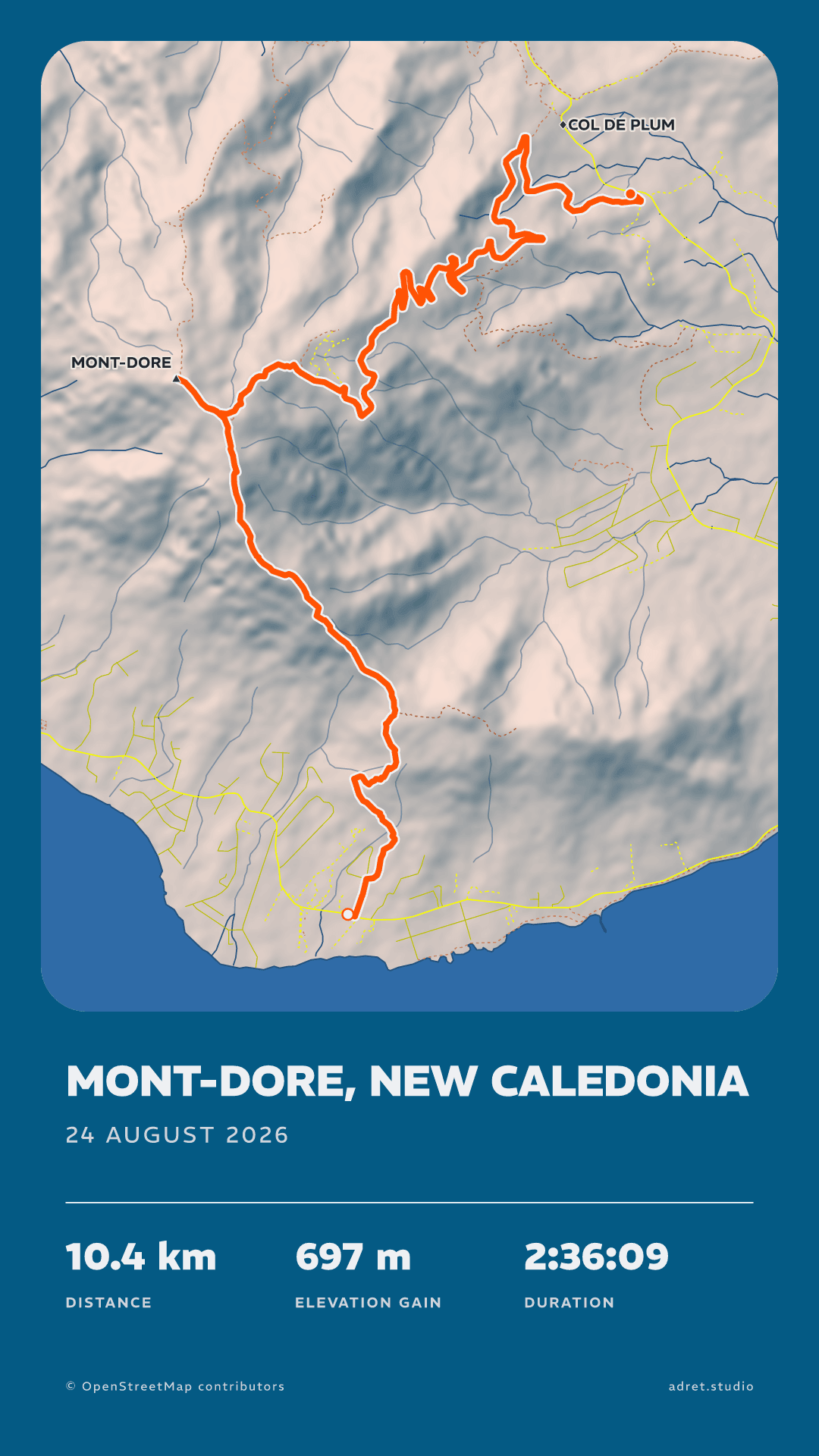
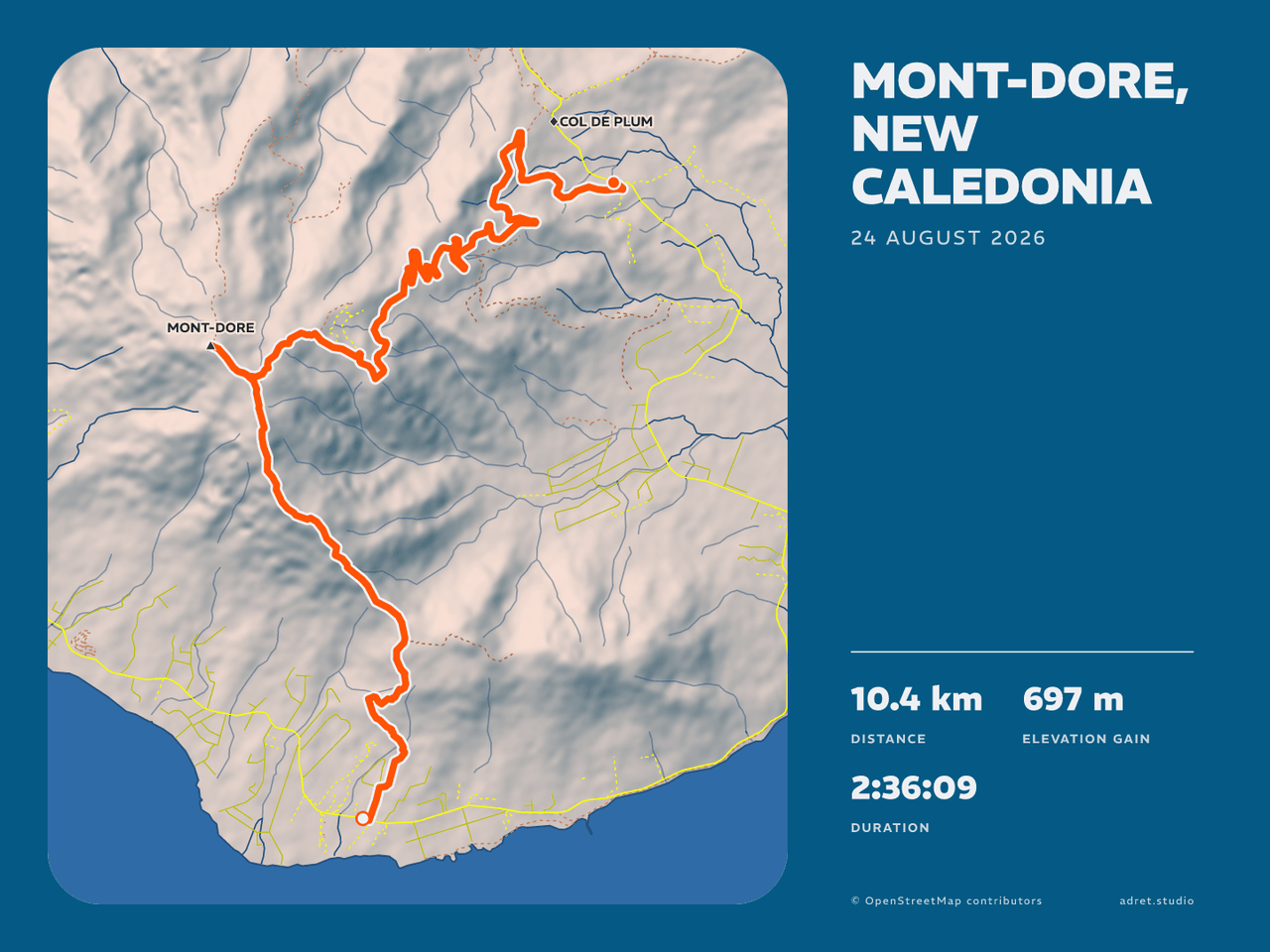
A JPEG cannot keep a transparent background; a PNG can, and it is the format every poster comes out in. A story at 1080×1920, or a post at 1080×1440, portrait or landscape.
Fair questions.
- The quick one: the built-in Transparent style, in the Styles tab.
- The precise one: the Background colour’s own Opacity slider, with the colour swatches under Page, pulled down to zero.
- In Adret itself: under Page, tap Background, then Photo, and choose it. The poster you share is already laid over it.
- In Instagram, which also works over a video: give the poster a transparent background, export it, and add the PNG to your story as a sticker.
- Under Page, tap Background, then Photo.
- Choose one from your library.
Your track, wherever you lay it.
Adret is on iPhone, iPad and Android. Free to try, no account, no watermark.